Best in-game settings: FPS vs quality (a practical guide without the fluff)
Every game comes with the same trade-off: push visuals to the max, or dial things back for smoother performance. The problem is that not all settings cost the same — some destroy FPS for a barely noticeable upgrade, while others improve image quality a lot with a small performance hit.
This guide explains which options impact FPS the most, how to reach a strong balance quickly, and which settings are usually not worth obsessing over.
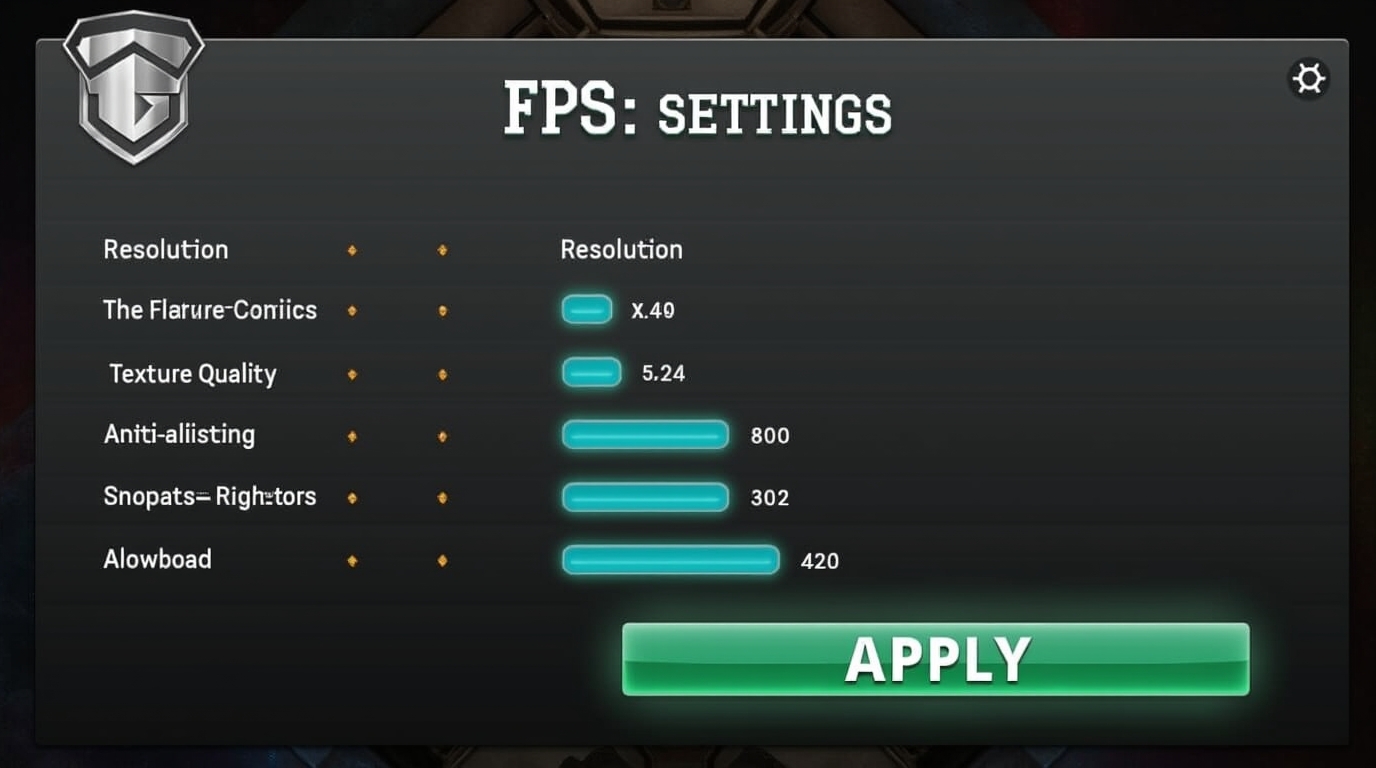
Visual illustration: InfoHelm
Rule #1: target consistency, not peak FPS
The best experience is rarely “the highest FPS ever.” It’s stable FPS without big drops (stutter and spikes hurt more than a 10–15 FPS difference).
Practical targets:
- competitive games: stable 120–240 FPS (whatever your display and system can realistically sustain)
- single-player: stable 60–90 FPS (often the sweet spot for quality)
- stable 60 is usually better than 90 that constantly drops to 40
The settings that hit FPS the hardest (and often don’t pay off)
If you want fast results, start here. These options are among the biggest performance hitters in most games.
1) Shadows
Shadows are expensive because they increase the amount of work the engine does per scene.
Recommendation:
- drop from Ultra to High or Medium
- you often gain a lot of FPS while the real-world visual difference is small
2) Volumetric effects (fog, smoke, volumetric lighting)
Volumetrics look great in screenshots, but they can crush performance during combat and particle-heavy scenes.
Recommendation:
- Medium is usually the best balance
- in shooters and open-world games, Low can be worth it
3) Ray Tracing (RT)
Ray tracing can look amazing, but it’s still one of the heaviest GPU features.
Recommendation:
- if FPS is the goal: turn RT off or keep only one RT feature (for example reflections)
- if visuals are the goal: use RT with upscaling (DLSS/FSR/XeSS) when available
4) Resolution scale / Render scale
This “hidden” slider often makes the biggest measurable difference.
Recommendation:
- 100% = native resolution (best clarity)
- 90–95% often looks almost the same and boosts FPS noticeably
- avoid 70–80% unless necessary (it gets visibly blurry)
Settings that are “cheap wins” for image quality
These options often improve visuals a lot for a relatively small FPS cost.
1) Textures
Textures usually stress VRAM more than raw GPU compute.
Recommendation:
- keep textures on High if you have enough VRAM
- if you’re VRAM-limited, lower textures before you touch resolution
2) Anisotropic filtering (AF)
One of the best value settings: keeps surfaces sharp at angles (roads, floors, walls into the distance).
Recommendation:
- 8x or 16x is almost always worth it and rarely causes trouble
3) Ambient occlusion (AO)
AO adds depth and more believable shading in corners and contact areas.
Recommendation:
- Medium/High is usually an excellent balance
- Ultra rarely justifies the extra cost
Anti-aliasing (AA): why it can look “blurry”
AA reduces jagged edges, but some methods (especially temporal AA) can soften the image.
Recommendation:
- if multiple AA options exist, test them and watch fine detail (foliage, fences, thin lines)
- if you use upscaling (DLSS/FSR), AA is often handled as part of the pipeline, so aggressive AA may be unnecessary
V-Sync, VRR, and tearing: smooth motion without frustration
If you notice tearing, there are three common approaches:
- VRR (FreeSync / G-Sync Compatible): the best option when available
- V-Sync: removes tearing but can add input lag (depends on the game and settings)
- FPS cap: often the cleanest compromise (cap slightly below your max to reduce swings)
Practical approach:
- with VRR, VRR + a sensible FPS cap is often ideal
- for single-player games, V-Sync is frequently fine if tearing bothers you
A 10-minute “recipe” that works in most games
If you don’t want to micromanage settings, this is the fastest reliable method:
- start with High preset (not Ultra)
- drop Shadows by one level
- drop Volumetrics by one level
- disable Ray Tracing (or keep it minimal)
- keep Textures as high as your VRAM allows
- set AF to 16x
- add an FPS cap (60/90/120 depending on your display)
- enable VRR if you have it; if not, consider V-Sync only if tearing is annoying
In most games, this delivers the best “time spent vs performance gained” ratio.
Conclusion
The best FPS-to-quality balance usually comes from avoiding “Ultra everything,” then lowering the most expensive features like shadows, volumetrics, and ray tracing. Textures and anisotropic filtering can often stay high, while resolution scale and an FPS cap deliver quick, measurable results.
The goal isn’t “best-looking on paper,” but stable, readable, smooth gameplay in real situations.
Note: This article is educational and informational.