Password manager guide: how to choose one and set it up in 30 minutes
The truth is most people don’t get hacked because they’re “a target.” It happens because they reused passwords or used passwords that are easy to guess. A password manager fixes that: instead of remembering 50 passwords (and recycling the same one), you remember one strong master password — and the tool generates and stores the rest.
This guide is written to be evergreen: you can open it six months from now and it will still be useful.
What is a password manager (and how does it work)?
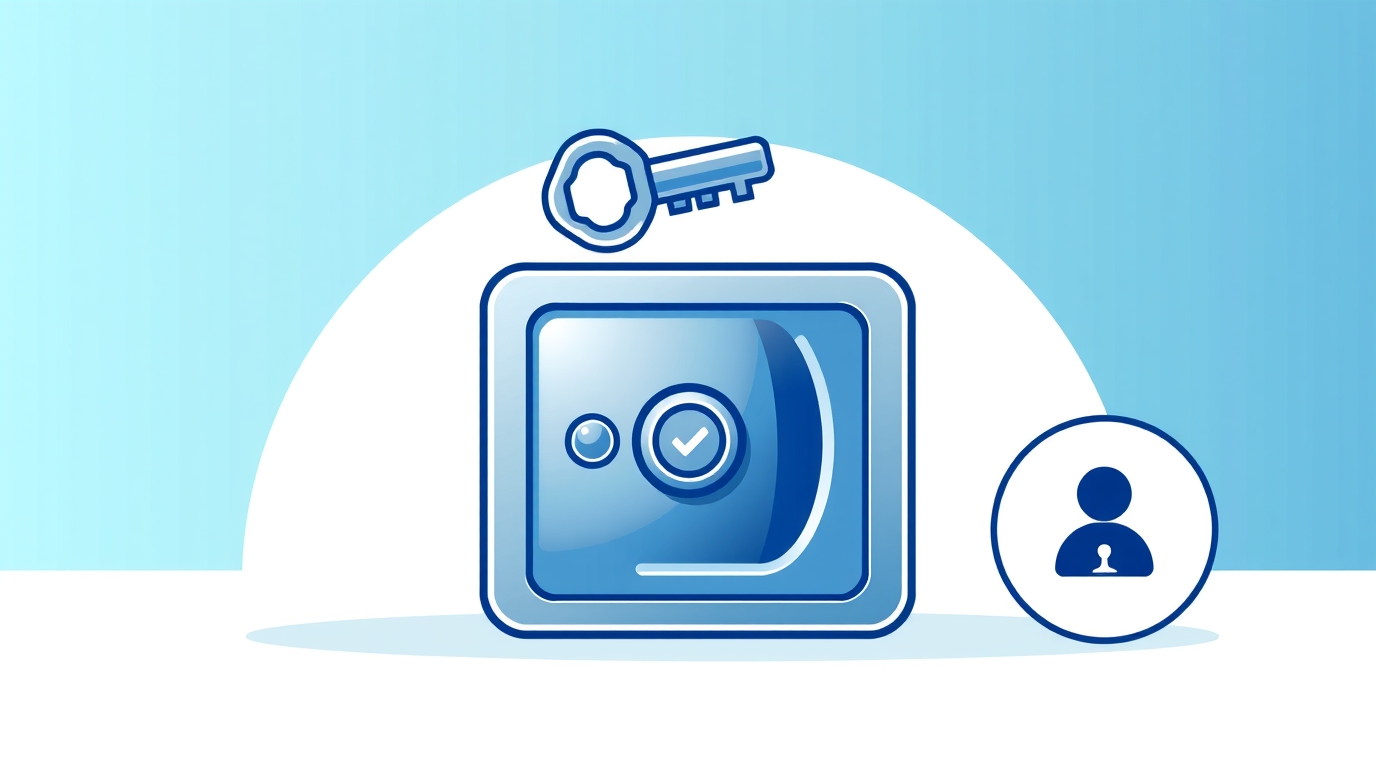
A password manager is an app that:
- stores your credentials in an encrypted vault,
- generates strong, unique passwords,
- autofills login forms,
- and often stores other sensitive items (cards, secure notes, recovery codes).
The core idea: instead of “one password everywhere,” you get “one password to unlock + a unique password for every site.”
The key terms (quick and clear)
Master password
The one password you actually need to remember. It should be long and strong.
Vault
The encrypted “safe” where your passwords live.
2FA/MFA
Extra protection (codes from an app, SMS, security keys). Even if someone learns your password, they can’t log in without the second factor.
Passkeys
A modern alternative to passwords (device + biometrics). Good managers increasingly support them.
How to choose a password manager (what matters)
You don’t need “the most expensive.” Focus on:
- Cross-platform (phone + desktop + browser)
- Reliable autofill
- Password generator (length, symbols, rules)
- 2FA support and/or passkey support
- Export/backup options (avoid lock-in)
- Sharing (if you need family/team features)
If you live fully in the Apple ecosystem, iCloud Keychain can be a solid starter option. If you mix platforms (Windows/Android + multiple browsers), an independent manager is often more convenient.
Setup in 30 minutes (a practical mini plan)
Step 1: Install on your phone and browser
The essentials:
- the mobile app
- a browser extension (Chrome/Firefox/Safari/Edge)
Step 2: Create your master password
Aim for:
- a long passphrase (multiple words), or words + numbers
- something memorable for you, hard to guess for others
Step 3: Turn on 2FA
If the manager supports 2FA — enable it immediately.
This is “a lock on top of a lock.”
Step 4: Move your 10 most important accounts first
Start with:
- email (the most important)
- Apple/Google account
- banking/crypto exchange
- social networks
- cloud storage (Drive/iCloud/Dropbox)
For each account:
- change the password using “Generate strong password”
- save it in the manager
- enable 2FA wherever possible
Step 5: Enable “password health” (if available)
Many managers can detect:
- reused passwords
- weak passwords
- accounts affected by known breaches
That becomes your roadmap for what to fix next.
Common mistakes (and how to avoid them)
-
Don’t skip backup/recovery options.
If you lose a device, you need a way back. -
Don’t store your master password in plain text.
If you must, use a physical note stored safely until you memorize it. -
Don’t leave your email without 2FA.
Email is the key that can reset everything else.
Conclusion
A password manager isn’t a “geek thing.” It’s the fastest way to improve your digital security without stress. The biggest impact comes from securing your top 10 accounts and enabling 2FA — and you’re already far ahead of average.
Disclaimer: This article is for informational purposes only and does not constitute legal or security advice. For sensitive systems or organizations, consult a professional.